

Connect Base44 Superagent to Financy and WhatsApp
Connect Base44 Superagent to Financy, use it from WhatsApp, and match Gmail invoices against card transactions safely.
Connect a Base44 Superagent to Financy to ask questions about balances and transactions from WhatsApp, create recurring summaries, and match invoices from Gmail against card charges.
Before you connect: This setup allows an external AI service to process sensitive financial data. Data retrieved from Financy may be processed in Base44 and delivered through WhatsApp. Connect only accounts you are authorized to expose, enable only the integrations you need, and review the privacy and retention policies of every service involved.
Choose a connection path
• Secrets and a generated Skill (primary path): the Superagent creates a Skill that uses the Financy CLI and reads credentials from Base44 Secrets. This path does not require Base44 Custom MCP.
• Direct Financy MCP over OAuth: a shorter connector flow available on Base44 Builder and higher plans.
Requirements
• A Financy Starter, Pro, or Ultra account with at least one active bank or card connection.
• A Base44 account with an active Superagent.
• WhatsApp on your phone.
• A Gmail connector only if you want to match invoices and receipts.
Base44 plan limits and quotas can change. Check the Base44 Superagent documentation before you start.
Path 1: connect with a Skill and Secrets
- Ask the Superagent to create the integration
Start a new Superagent conversation and send:
Create a Skill named Financy that reads my connected accounts and transactions through the official npx financy CLI. Read credentials only from FINANCY_USER_ID, FINANCY_CLIENT_ID, and FINANCY_CLIENT_SECRET environment variables. Never print secrets, store them in files, or run a data refresh without asking me first.
A prompt is a behavioral instruction, not a technical permission boundary. Review the generated Skill, verify that it uses only the commands and data you intended to expose, and do not approve unfamiliar code or packages.
- Copy your Financy API credentials
In Financy, open Settings → API and copy these values:
Financy fieldBase44 Secret
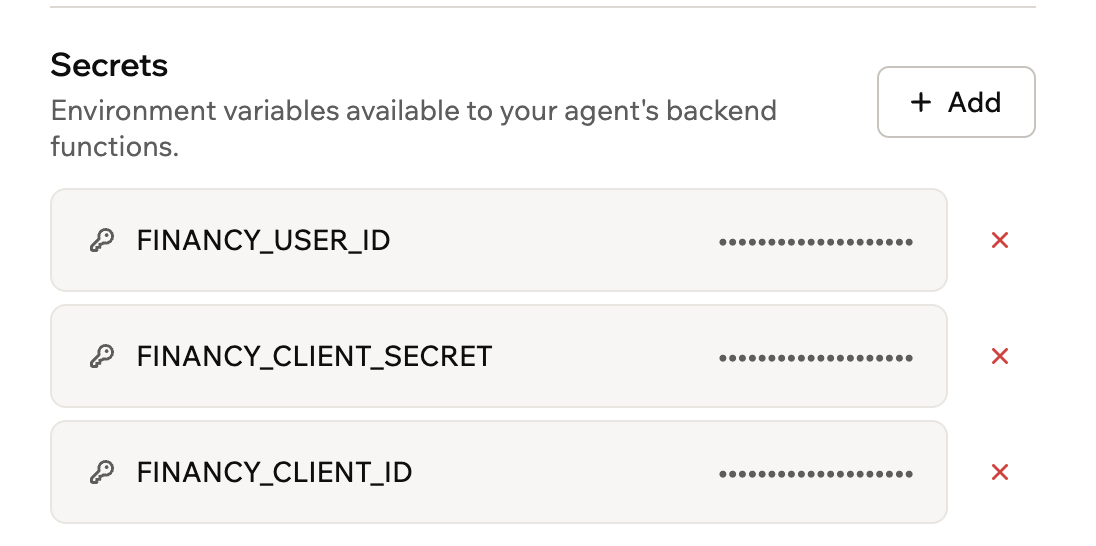
User IDFINANCY_USER_ID
Client IDFINANCY_CLIENT_ID
Client SecretFINANCY_CLIENT_SECRET
- Store the values as Base44 Secrets
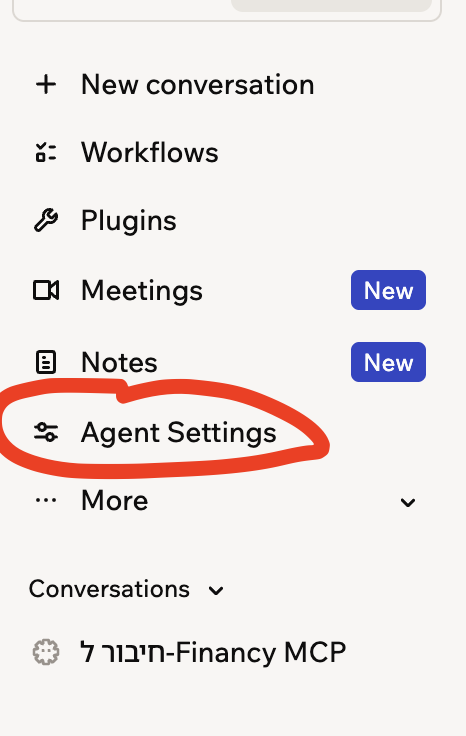
Open Agent Settings → Security → Secrets, add all three variables, and place each value in the matching field.
Treat the Client Secret like a password. Never paste it into a chat or WhatsApp message, publish it, or include it in a screenshot. Storing a Secret allows functions in the agent environment to use it. Treat the credential as granting every capability that the associated API actually exposes. Do not attach it to a shared agent or an agent other people can edit.
If the secret is exposed, rotate it in Financy and update Base44 immediately. When you stop using the integration, delete the Secrets and rotate the credential.
- Test the connection
Test the Financy connection. Run the status check, tell me the latest available date for each connection, and verify that you can list my accounts. Do not run refresh.
Always check data freshness before analysis. Banks and card issuers may publish data with a delay, and a partial period can produce misleading conclusions.
Connect the Superagent to WhatsApp
In Base44, open Agent Settings → Channels → WhatsApp. Scan the QR code or open WhatsApp and send the activation message shown on screen.
Use a private chat only. Anyone with access to your phone, WhatsApp Web, a linked device, or lock-screen previews may see balances and transactions. Enable device locking and two-step verification, review linked devices, and disable previews for sensitive messages. Never send passwords, one-time codes, or full card details.
Useful WhatsApp prompts
Balances and freshness
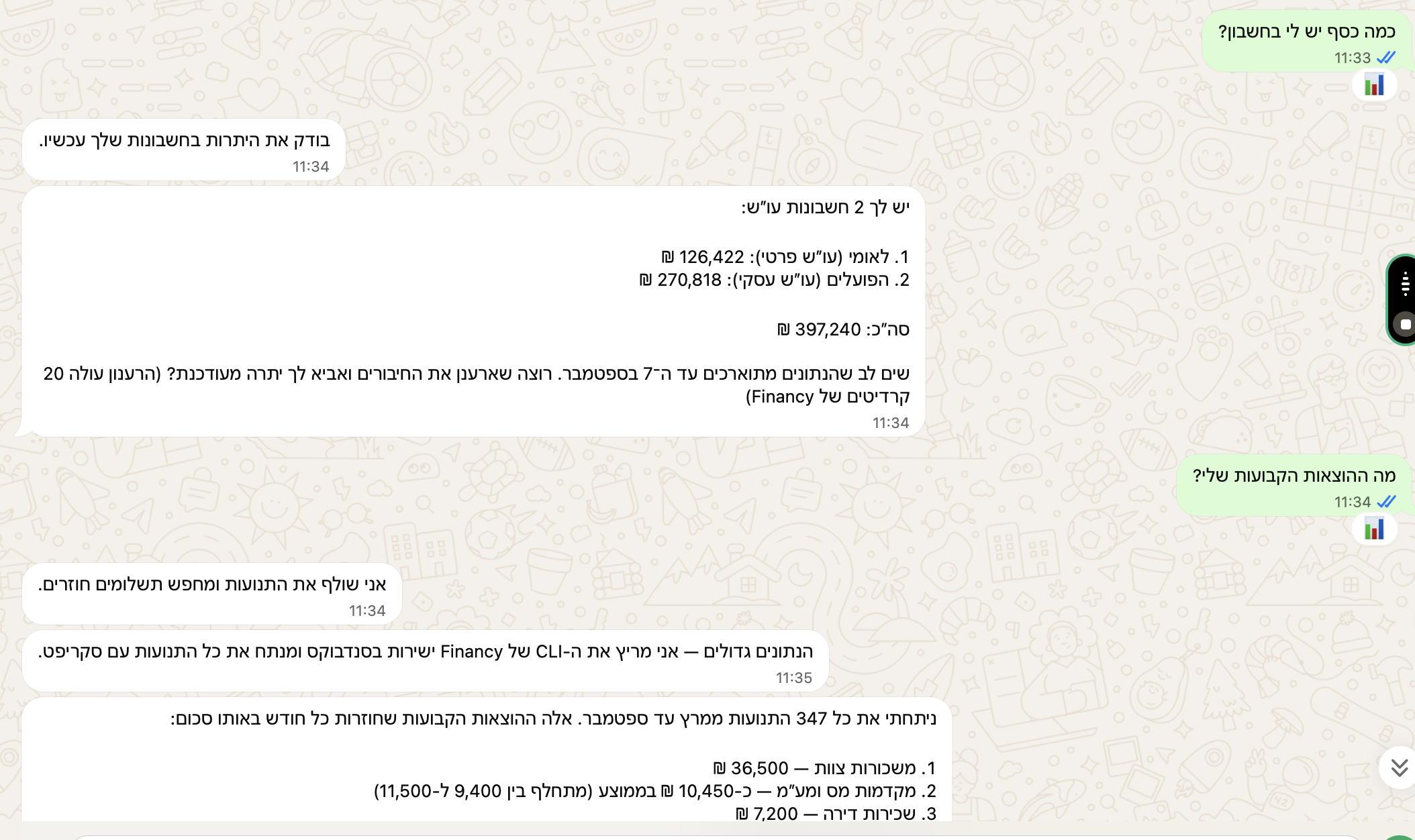
Check how current every Financy connection is. Show the balance of each account and the total. Separate personal current accounts, business current accounts, and card balances. Do not treat credit limits as available cash.
Recurring charges
Review the last four complete months in Financy. Find charges that recur monthly for the same merchant or a similar amount. Group them into subscriptions, rent, payroll, taxes, and other fixed expenses. Estimate the monthly total and mark uncertain cases.
Compare two months
Compare the most recent complete month with the previous month. Exclude internal transfers, show refunds separately, and do not count both individual card transactions and the aggregated card payment. Show the five categories with the largest changes and the transactions that explain each change.
Unusual or duplicate charges
Review the last 60 days in Financy. Find possible duplicate charges by merchant, amount, and date, and expenses that are unusual compared with my normal pattern. Do not label a charge as an error without enough evidence. Separate strong suspicions from items that need review.
Scheduled WhatsApp summary
Every Sunday at 08:00, first check how current the Financy data is. Send a short WhatsApp summary of balances, last week's expenses, unusual charges, and the three largest upcoming payments. If the data is stale, say so and do not present the summary as complete. Never run refresh without approval.
Test a workflow manually before scheduling it. Confirm the recipient, timezone, included accounts, and message detail. Avoid account numbers, full names, and unnecessary transaction details in automated messages, and disable workflows you no longer use.
Match Gmail invoices with card transactions
Connect Gmail from Plugins → Add Connector → Apps and use the narrowest permissions available. Invoice matching does not require permission to send or delete messages.
Mailbox access may expose contracts, personal information, conversations, and attachments beyond invoices. Use clear date and document filters, do not connect an organizational mailbox without authorization, and disconnect Gmail after a one-time task.
Then send:
Read only invoices and receipts received in Gmail during the last complete month, including PDF and image attachments. Extract the merchant, document number, date, total amount, and currency. From Financy, retrieve card transactions for the same period plus seven days before and after it. Match by amount and currency, normalized merchant name, and transaction date. Divide the results into Match, Possible match, and No charge found. If multiple transactions have the same amount, do not guess. Do not delete, move, or label emails, and do not decide whether an expense is tax deductible.
The seven-day window accounts for differences between invoice dates and posting dates. Foreign-currency charges may differ from the invoice amount and should remain possible matches until reviewed. This is a document-finding aid, not bookkeeping or tax advice.
Path 2: direct Financy MCP for Base44 Builder
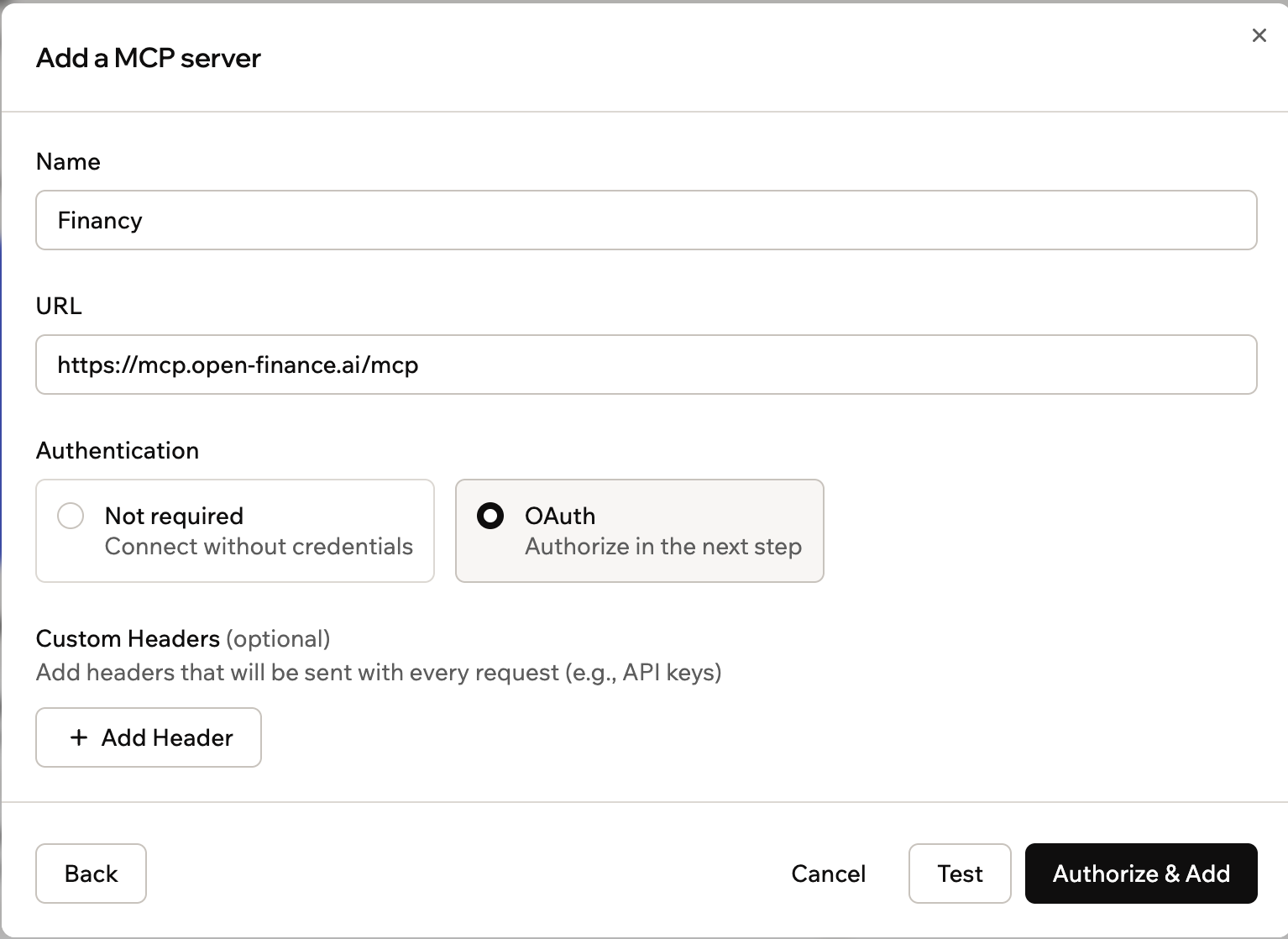
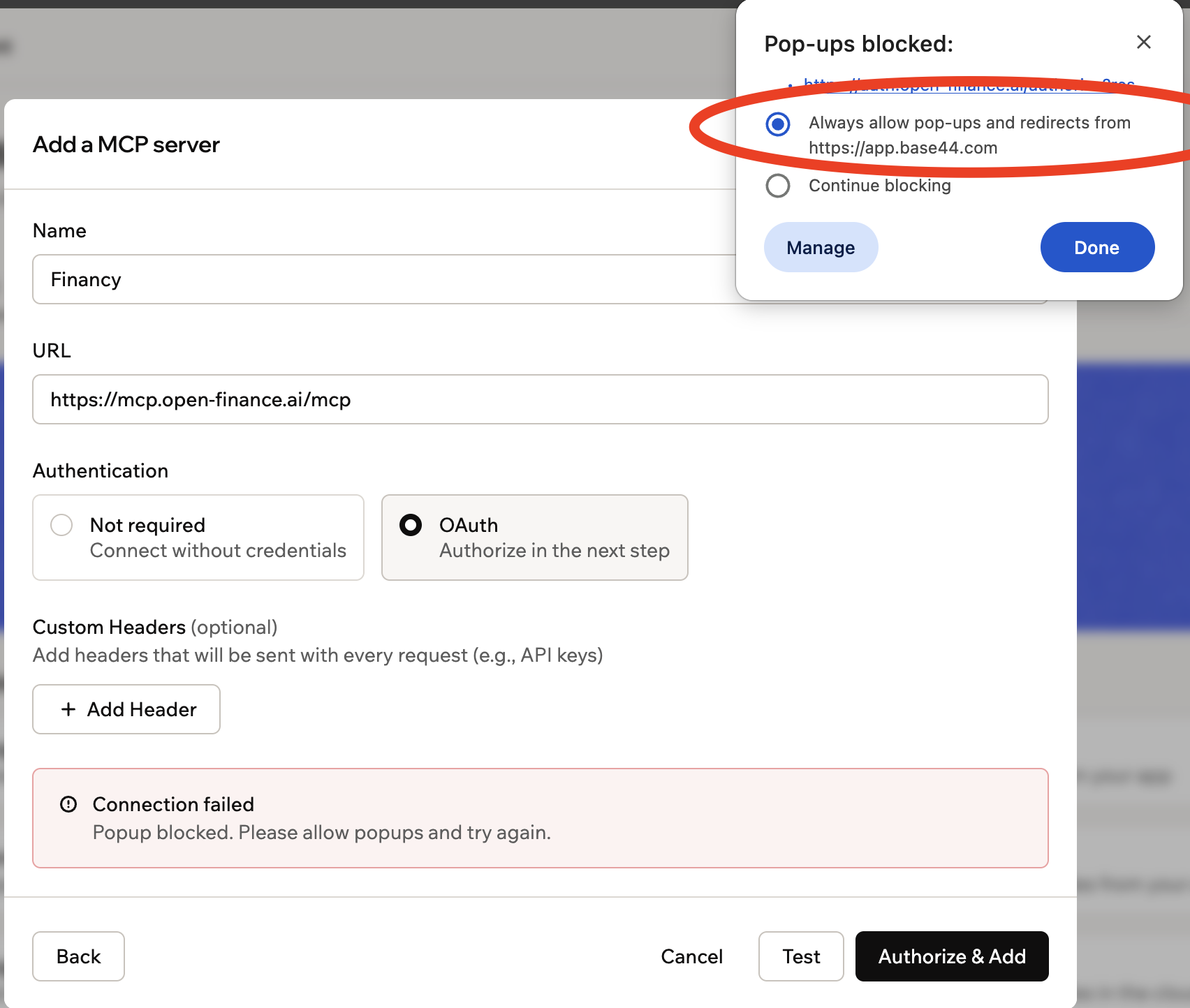
In Base44, open Plugins → Add Connector → MCP → Add a MCP server and enter:
FieldValue
NameFinancy
URLhttps://mcp.open-finance.ai/mcp
AuthenticationOAuth
Custom HeadersLeave empty
Select Authorize & Add. If the authorization window is blocked, allow pop-ups and redirects only for the exact app.base44.com domain and try again. Verify that the authorization page uses auth.open-finance.ai, confirm the intended account, review the scopes, and select Accept. Stop if the domain or permissions are unexpected.
The direct Financy OAuth connector described here provides read access to accounts, transactions, balances, loans, and securities. It cannot transfer money, create a payment, or modify a bank account.
Security checklist
• Request only the data required for the current task.
• Never share bank passwords, OTP codes, API credentials, or full card details with the agent.
• Remember that instructions in prompts are not technical access controls.
• Review active Connectors, Secrets, and Workflows regularly and remove anything unused.
• AI can make mistakes in matching, classification, and summaries. Verify source transactions before disputing a charge, contacting a merchant, filing tax information, or making a significant financial decision.
For the Hebrew walkthrough and screenshots, see the Help Center article. The illustrated blog version will be available at financy.open-finance.ai/blog/base44-superagent-financy-whatsapp.
Base44 setup screenshots
These screenshots show the main setup flow in Base44. Sensitive API values and OAuth identifiers are intentionally excluded.
Step 1 — Open Agent Settings
Step 2 — Store Financy credentials as Secrets
Step 3 — Ask Financy questions from WhatsApp
Step 4 — Add the Financy MCP server
Step 5 — Allow the authorization pop-up if blocked
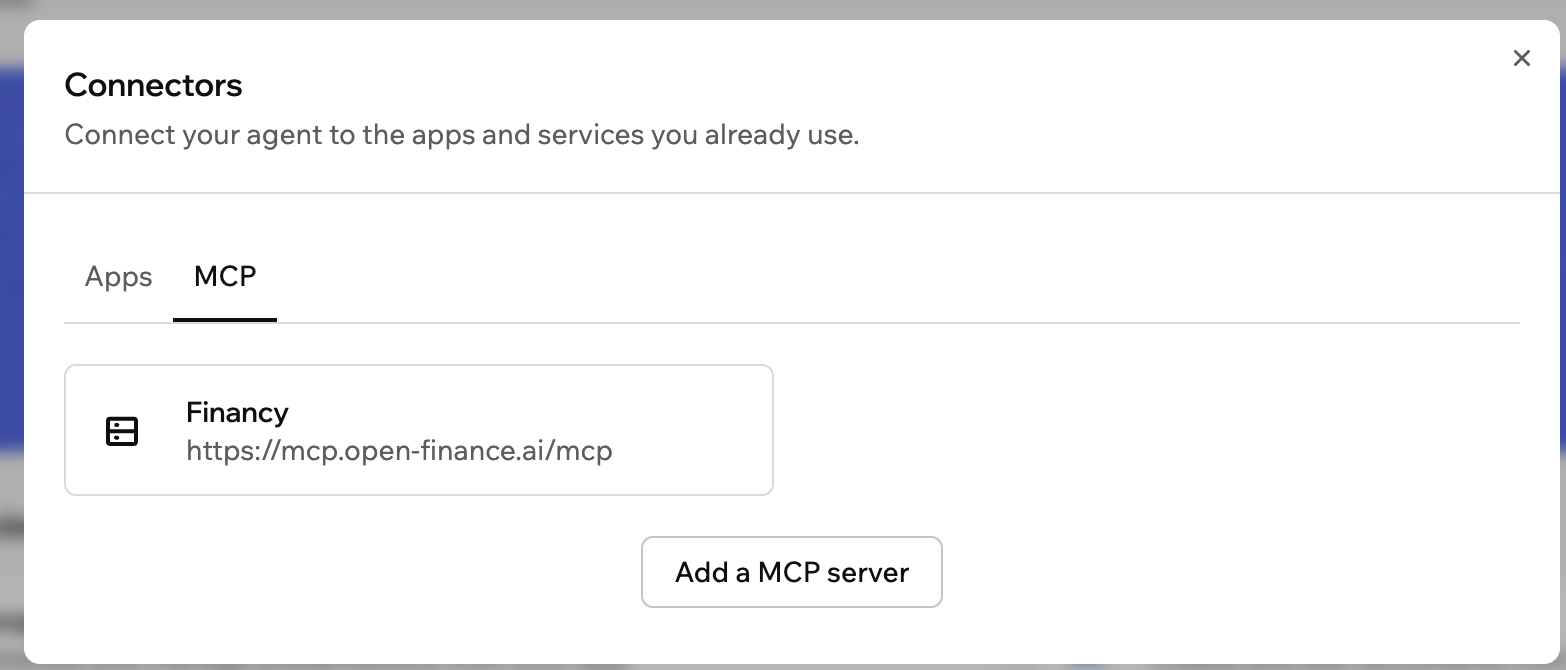
Step 6 — Verify that Financy is connected
Updated about 2 months ago